Creating notes
Notes are the place for anything you want to write down in Gridflo — meeting notes, ideas, plans, journals. Every note autosaves as you type, so you never have to press a save button.
Create a note
- Open Notes from the sidebar
- Click the "+ New Note" button
- Give your note a title in the "Note title..." field
- Start writing in the editor below
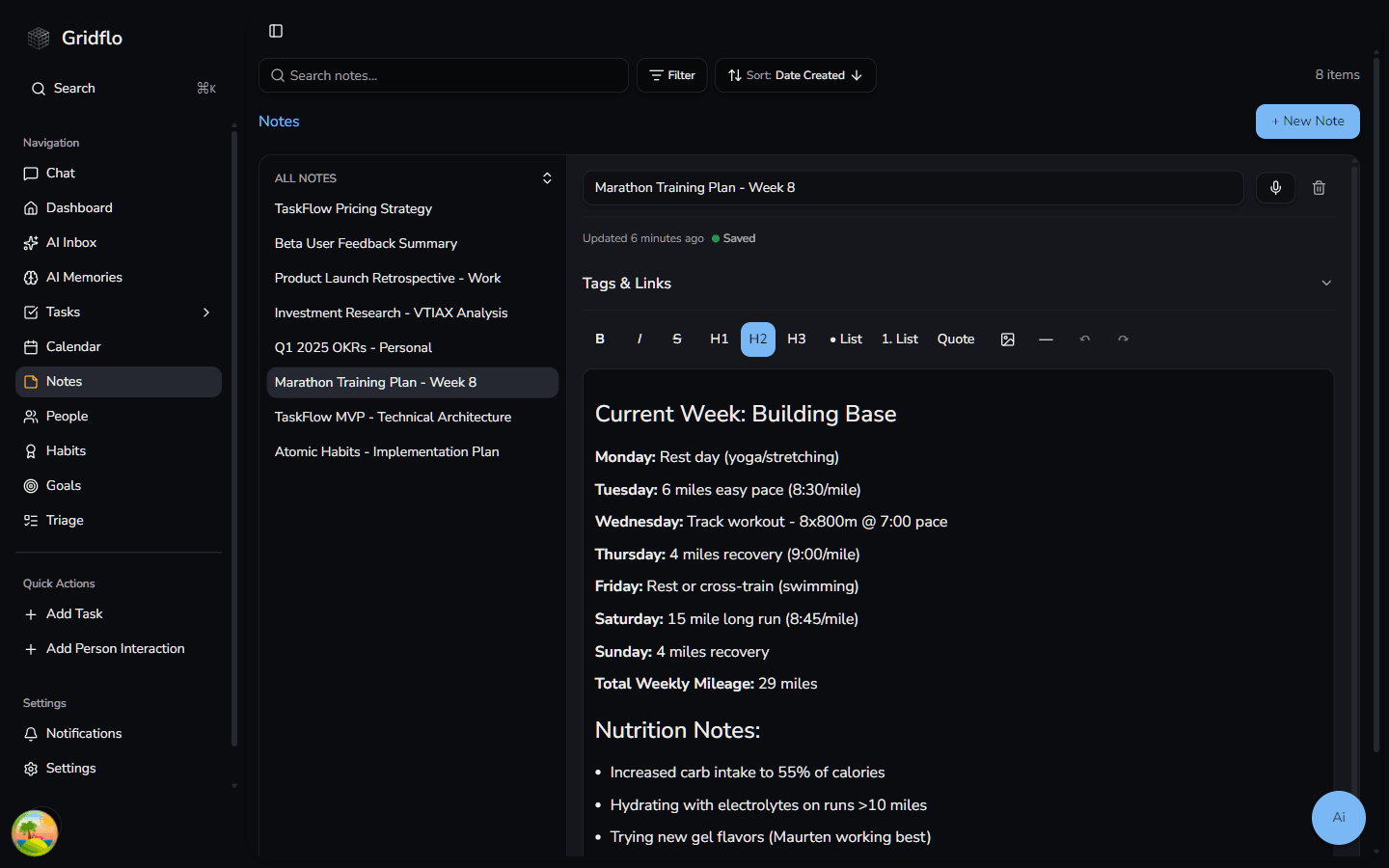
Your new note opens in the editor next to the All Notes list. You can also click "+ Create New Note" from the empty editor pane when no note is selected.
Autosave
Gridflo saves your note automatically as you write. The indicator under the title shows the current state: "Unsaved changes" while you're typing, "Saving..." while your changes are being stored, and "Saved" once everything is safely up to date. You'll also see when the note was last updated.
Dictate a note with your voice
The mic icon next to the note title opens the voice recorder, which records audio and transcribes it into text in real time.
- Click the mic icon at the top of the note
- Click "Start Recording" and start speaking
- Watch the live transcript appear as you talk — you can pause and resume at any time (press Space to pause or resume, Esc to stop)
- Click "Stop Recording" when you're done
- When you see "Transcription complete", click "Insert into Note" to add the text, or "Record Again" to retry
The transcript is added to the end of your note under an "Audio Transcription" heading with a timestamp, so you can edit and format it like any other text.
Delete a note
Click the delete icon at the top of the note and confirm. If the note has notes nested inside it, those sub-notes are kept and simply move up a level — see Organizing your notes for how nesting works.