Connect Google Calendar
Connecting Google Calendar lets you see your existing events alongside your tasks in Gridflo — and, if you choose, create and edit events in both directions.
Connect your Google account
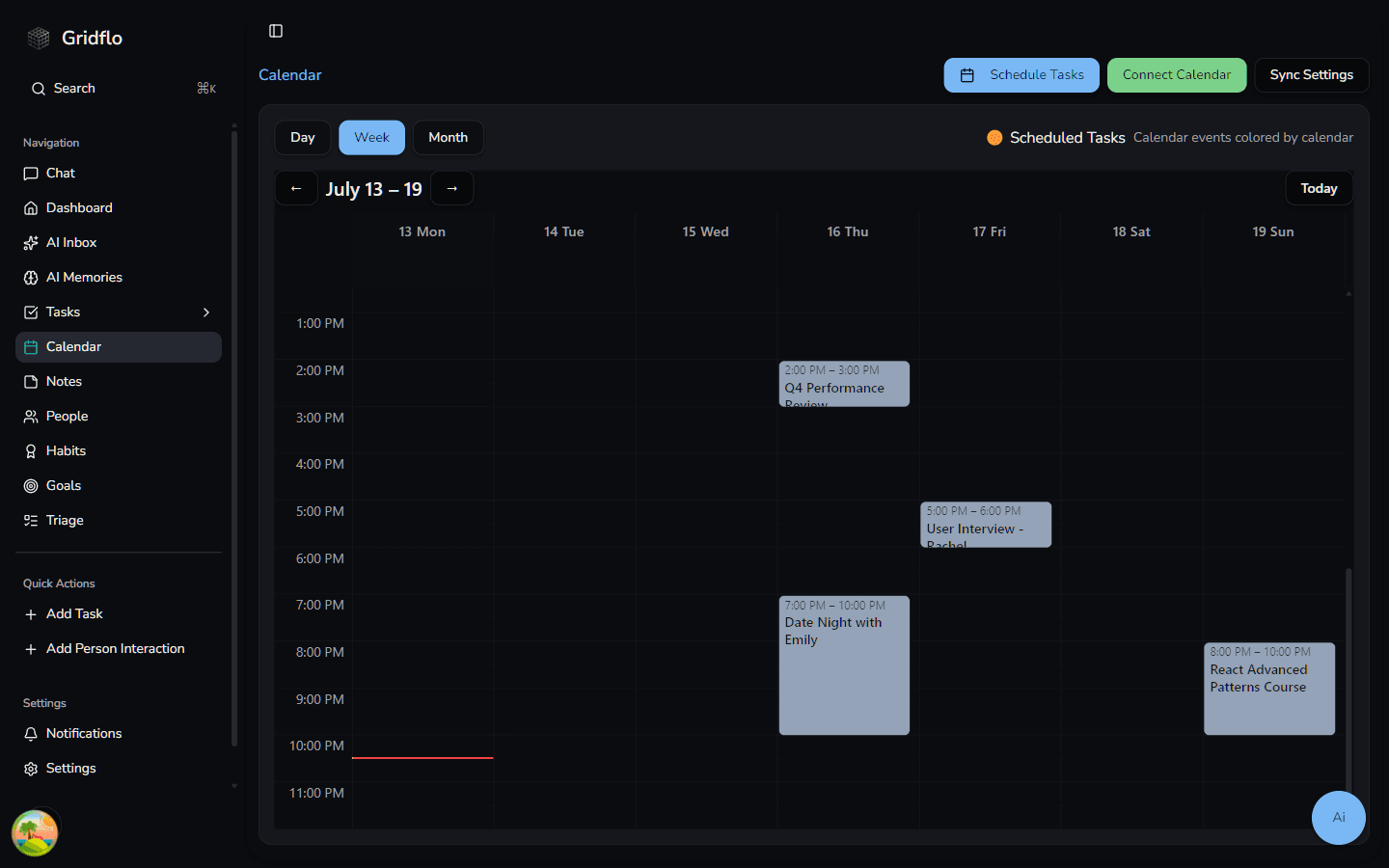
- Open Calendar from the sidebar and click Connect Calendar in the top right.
- In the Connect Your Calendar window, review what access Gridflo needs, then click Authorize Google Calendar.
- Sign in with Google and approve the permissions. Make sure every checkbox on Google's consent screen is ticked — Gridflo needs all of them to sync your events. If one is missed, you'll be asked to grant the missing permission and can try again.
Once you're connected, Gridflo syncs your events and opens Sync Settings so you can choose which calendars to show.
Choose which calendars sync
Click Sync Settings at any time to open the Calendar Integration panel. For each calendar in your Google account you can:
- Enable or disable it with the checkbox next to its name. Enabled calendars sync their events into your Gridflo calendar view.
- Pick a color, so every event from that calendar is easy to spot at a glance.
- Enable 2-way sync, so you can create, edit, and delete events in both Gridflo and Google Calendar. This is only available for calendars where your Google account has write access.
- Set as primary calendar — the calendar where new events you create in Gridflo are added. Only one calendar can be primary.
One-way or two-way?
By default, connected calendars are read-only: their events appear in Gridflo, but you can't change them there. Turn on Enable 2-way sync for a calendar to edit its events from Gridflo — see Creating and editing events.
Keeping everything in sync
Gridflo syncs automatically when you open the Calendar page. You can also click Sync Calendars next to the page title to pull in the latest events right away. Each calendar in Sync Settings shows when it last synced.