Scheduling and priorities
Gridflo gives you three ways to decide what happens when: due dates, priorities, and Auto Scheduling. Here's how each one works.
Due dates with When
Instead of always picking a date, choose a When option and Gridflo sets the due date for you:
- ASAP and Today — due today
- This Week — due at the end of this week
- Next Week — due at the end of next week
- By Date — pick the exact due date yourself
- Someday — no due date at all, for ideas you want to keep without any pressure
Priorities
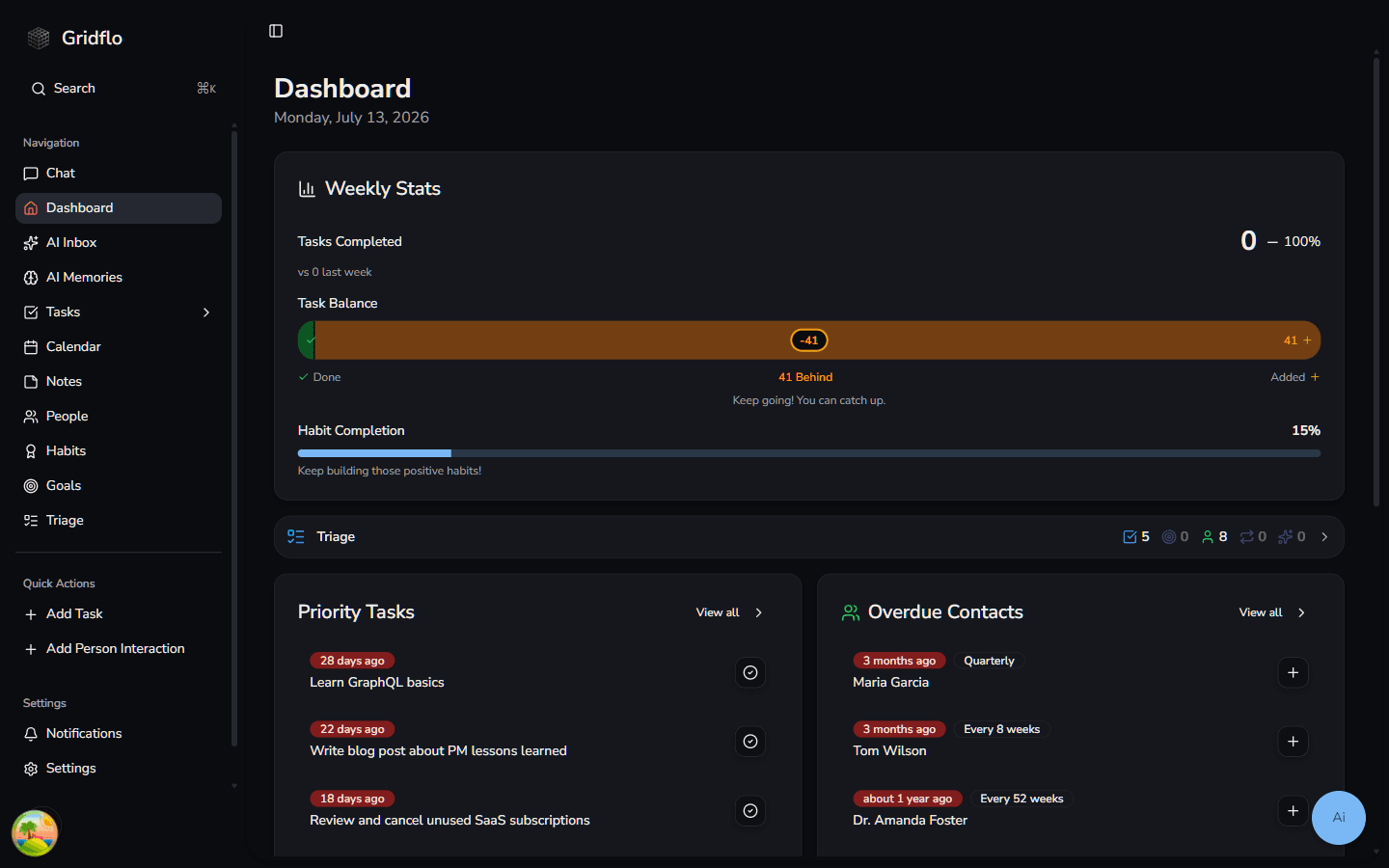
Every task can be marked Critical, High, Medium, or Low. Priorities help you sort your boards and lists, and they feed the Priority Tasks widget on your Dashboard, which surfaces your most important tasks — including anything overdue — so you always know what to tackle first. You can complete a task right from the widget, and adjust how many tasks it shows under Settings → Dashboard.
Auto Scheduling
Auto Scheduling turns your task list into actual time blocks on your calendar. A schedule is a set of weekly time slots — for example working hours on weekdays, or evenings and weekends. To make a task eligible, give it a When option, a duration, and a schedule in the Auto Scheduling field of the task form.
When Gridflo schedules your tasks, it fills open slots in your chosen schedules while working around existing calendar events. Urgent tasks (ASAP and overdue) are placed first by priority, then tasks with deadlines, and finally Someday tasks if there's room. Tasks longer than an hour can be split into smaller blocks — turn on Allow task splitting under More details.
Scheduled time blocks appear on your Calendar, where you can also trigger scheduling with the Schedule Tasks button.
If tasks slip past their due dates anyway, don't worry — Triage helps you catch up.