Triaging your backlog
Triage is an inbox for everything that needs your attention. Instead of scrolling through long lists, you review items one at a time and decide what to do with each — most people clear a full queue in a few minutes.
What lands in Triage
- Overdue tasks — tasks past their due date
- Stale tasks — tasks with no due date that have been sitting untouched for a while
- Overdue goals — goals past their target date that haven't been marked achieved, missed, or abandoned
- Overdue contacts — people you haven't reached out to within their contact frequency
Use the Category filter to focus on one type at a time, and Sort by to order the queue by Most Overdue, Oldest First, or Highest Impact.
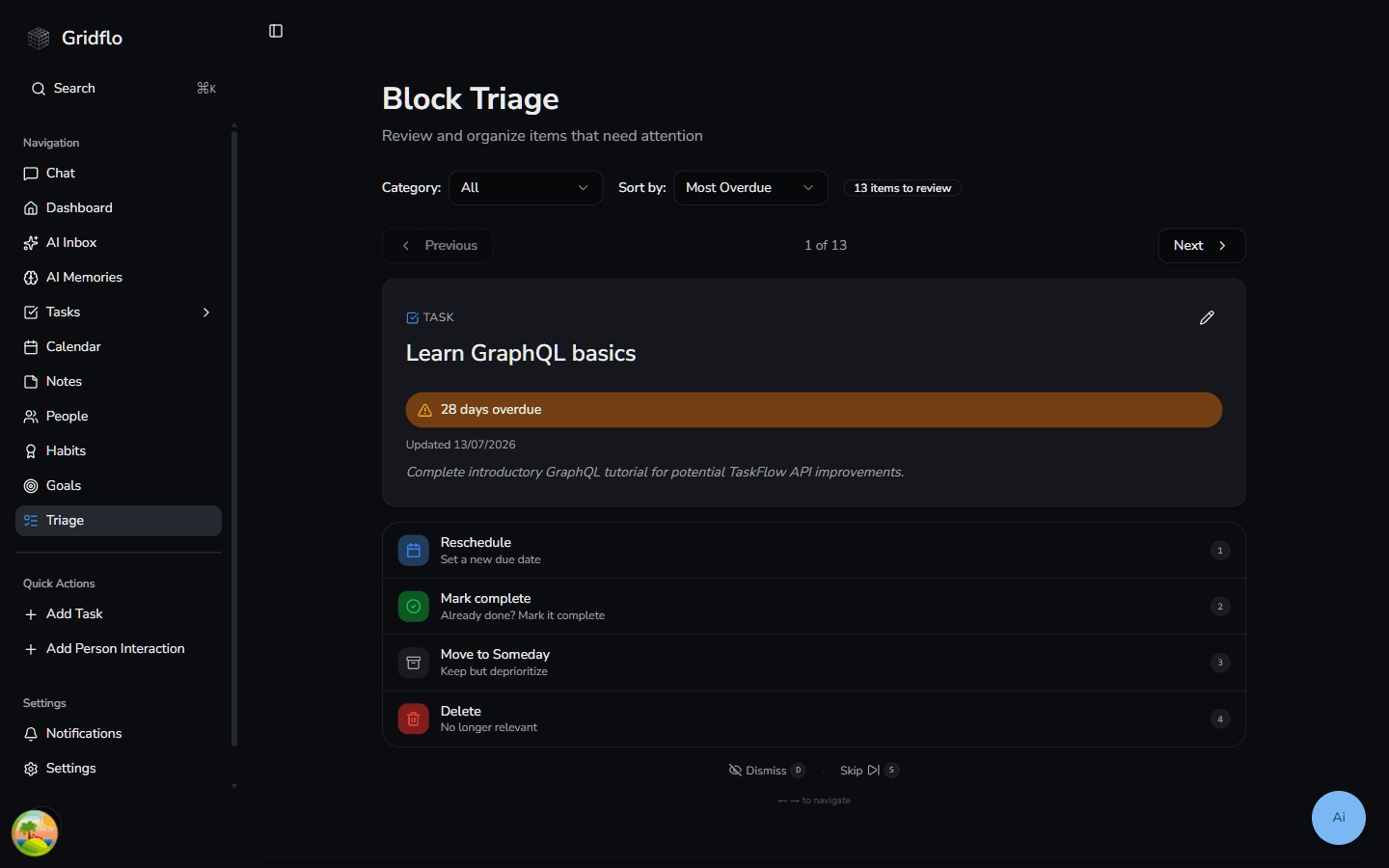
Reviewing items
Each card shows the item, how many days overdue it is, and the actions that make sense for it. For an overdue task you can:
- Reschedule — set a new due date
- Mark complete — already done? Check it off
- Move to Someday — keep it, but remove the deadline and deprioritize it
- Delete — it's no longer relevant
Not ready to decide? Skip moves to the next item without changing anything, and Dismiss hides the item from the queue for a while.
Keyboard shortcuts
Triage is built for speed: every action shows its shortcut key right next to it — the number keys trigger the main actions — and the left and right arrow keys move between items, just like the Previous and Next buttons.
You can tune what appears in Triage — which categories are included and how overdue or stale an item must be — in Settings → Triage. To avoid items piling up in the first place, see Scheduling and priorities.